Set up FrameStoreKit
Follow this procedure to connect Shopify, create the managed Products collection, run your first sync, and add components in Framer.
1. Create or access your FramerHub account
Open FrameStoreKit from the Framer Plugins menu. Create a free account if this is your first visit, or sign in with your existing FramerHub account. This is separate from your Shopify store login.
Create your account
One account unlocks the plugin across all your Framer projects.
Sign in to FrameStoreKit
Use your FramerHub account — not your Shopify store login.
2. Prepare your Shopify store
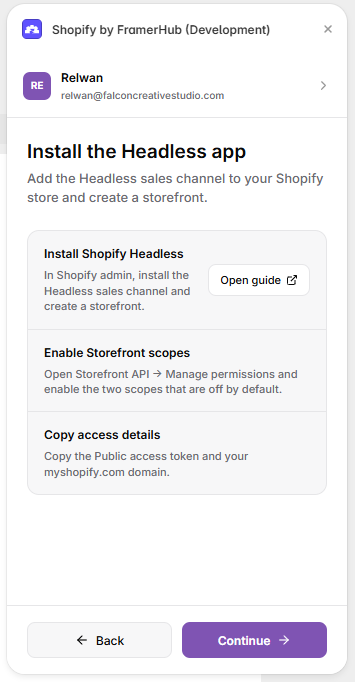
In Shopify admin, add the Headless sales channel and create a storefront. Copy the public Storefront API token and your myshopify.com domain.
Set up your store
Three milestones. About 3 minutes.
- Install Shopify HeadlessFrom Shopify admin, add the Headless sales channel and create a storefront.
- Enable Storefront scopesOpen Storefront API → Manage permissions and enable product inventory and product bundles.
- Copy access detailsCopy the public Storefront API token and your permanent myshopify.com domain.
3. Connect Shopify
Paste the store domain and public token into the plugin. A green Connected state confirms the Storefront API is ready.
Connect your Shopify store
Use a public Storefront token from Headless.
Paste the public token only. Never paste an Admin API token.
Storefront API
Public access token
shpat_public_••••••••••••Permissions
For the full connection procedure and later token changes, see Connect and manage your Shopify store.
4. Create the Products collection
Open Framer CMS and let the plugin create the managed Products collection with the fields required by the components.
Create your Products collection
Products will sync into a Framer CMS collection managed by FrameStoreKit.
Products
Managed collection · Shopify
Run your first sync to import products.
5. Run your first product sync
Choose all products or selected Shopify collections, then start the sync. Products, variants, pricing, inventory, and images are written to Framer CMS.
Sync products
Choose what to import into this collection.
Optional: Enable customer accounts
Pro and Lifetime users can add customer login during onboarding or later in Manage → Customer accounts. Choose Skip for now to finish setup without login.
You'll need a public Customer Account Client ID and your published Framer HTTPS site URL. Follow the Customer Account setup guide to register the callback, JavaScript origin, and logout URI in Shopify and create your account page.
6. Manage syncs and components
Use incremental sync for routine catalog updates, or sync from scratch when you need a clean rebuild. Your custom Framer fields remain untouched.
Manage your connected storefront
Keep catalog updates, connection health, and component insertion together in the plugin.
After onboarding, use Manage → Connection to update your public Storefront token and Manage → Customer accounts to change or clear the Client ID and site URL. Each save replaces the existing FramerHub site script without duplicates and preserves unrelated custom code.
Check the script status in Manage → Domains & runtime, retry from the canvas if needed, and publish your Framer site to apply saved changes. Components with auto connection fields follow the shared settings; older explicit values can be changed to auto.
Free stores display the Powered by FrameStoreKit site button. A Pro or Lifetime license assigned to the store removes it after the site code updates and you publish again.
Incremental sync
Update products that changed since the previous successful sync. Use this for routine catalog maintenance.
Sync from scratch
Rebuild the managed Shopify product data when you need a clean catalog refresh.
Custom Framer fields
Framer-only fields remain separate from Shopify-managed data and survive future syncs.